
Here at geek central, we're in the business of making things as easy as possible. There's a registry hack for Windows that will let you add a Copy To Folder or Move To Folder to the right-click menu, which can be very useful when you want to move a file but don't have the other folder open already.
Right-click on a file:
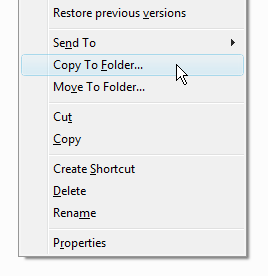
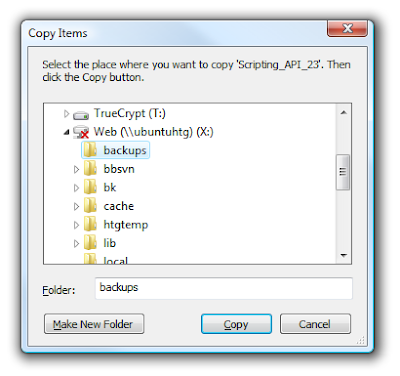
And up pops a nice dialog that you can use to easily drop a file into the right directory.
Install
Just download, unzip, and double-click on the registry files. You can choose to use the copy to, move to, or both.
Download Copy To / Move To Registry Tweak
Note: We've written about the manual way to do this before. This tip has been around for many years and also works on Windows XP.
A hidden functionality in Windows allows you to right click on a file, select Copy To Folder or Move To Folder, and the move to box will pop up and let you choose a location to either copy or move the file or folder to.
Here's the quick registry hack to get this working. As usual, back up your registry just in case. You will want to browse down to this key:
Once you are at that key, right click and choose the New Key option:

Now you will double-click on the (Default) value and enter the following:
Click OK and continue.
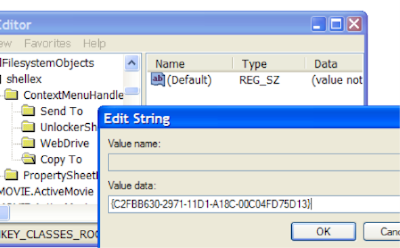
If you want to enable Move To, you will repeat the same steps, except creating a new key named Move To, and using this value:
Now when you right click on a file or folder, you should see the following options:
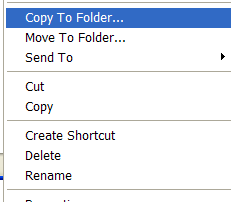
Let's click Copy To Folder just to see what happens….
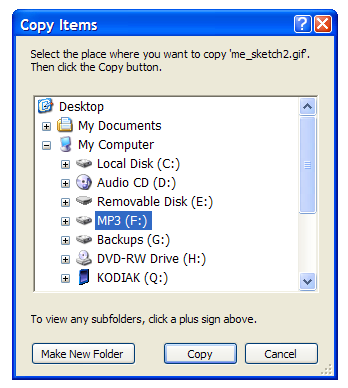
And that's it. Useful!
Right-click on a file:

And up pops a nice dialog that you can use to easily drop a file into the right directory.

Install
Just download, unzip, and double-click on the registry files. You can choose to use the copy to, move to, or both.
Download Copy To / Move To Registry Tweak
Note: We've written about the manual way to do this before. This tip has been around for many years and also works on Windows XP.
A hidden functionality in Windows allows you to right click on a file, select Copy To Folder or Move To Folder, and the move to box will pop up and let you choose a location to either copy or move the file or folder to.
Here's the quick registry hack to get this working. As usual, back up your registry just in case. You will want to browse down to this key:
HKEY_CLASSES_ROOT\AllFilesystemObjects\shellex\ContextMenuHandlers
Once you are at that key, right click and choose the New Key option:

Now you will double-click on the (Default) value and enter the following:
{C2FBB630-2971-11D1-A18C-00C04FD75D13}
Click OK and continue.

If you want to enable Move To, you will repeat the same steps, except creating a new key named Move To, and using this value:
{C2FBB631-2971-11D1-A18C-00C04FD75D13}
Now when you right click on a file or folder, you should see the following options:

Let's click Copy To Folder just to see what happens….

And that's it. Useful!


